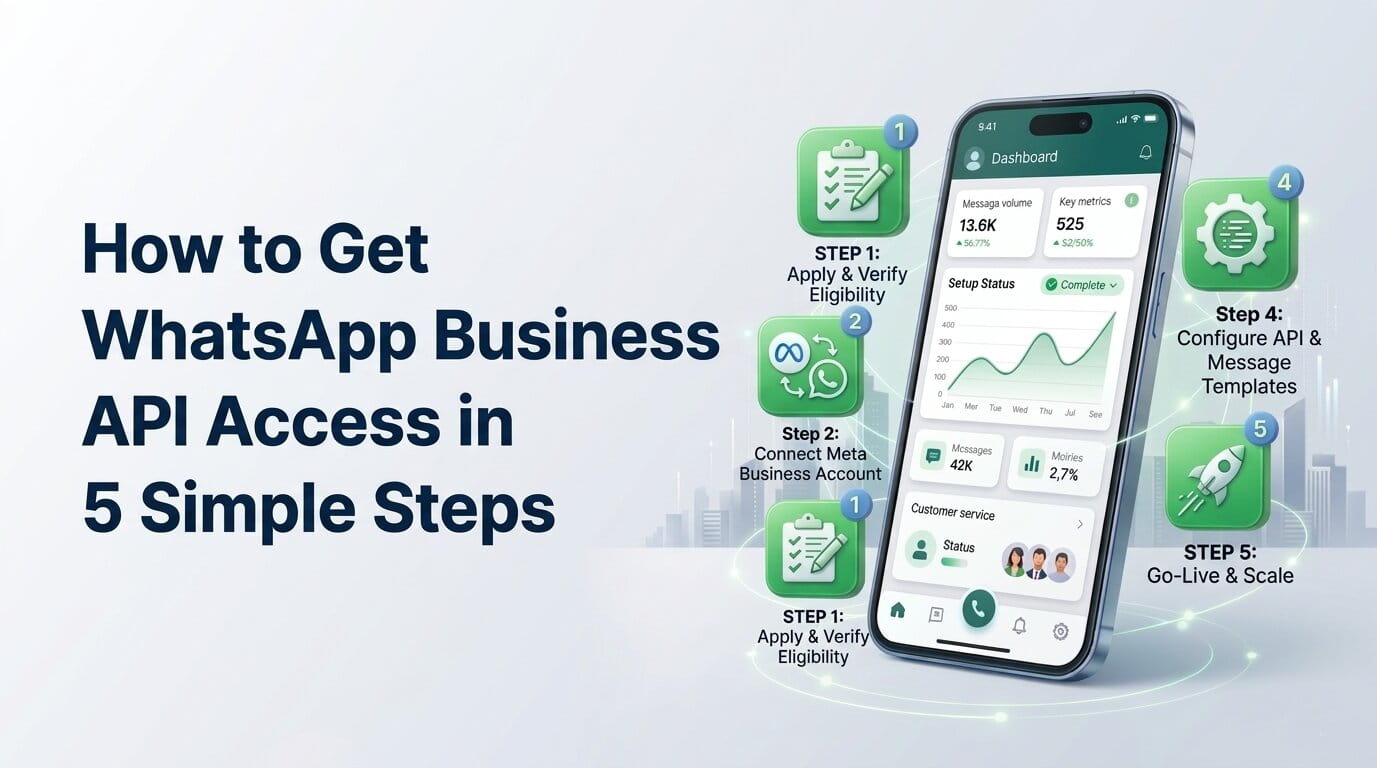
How to Get WhatsApp Business API Access in 5 Simple Steps
Introduction
Most articles about getting WhatsApp Business API access are outdated for one simple reason: they mix together the steps a business completes inside Meta's Embedded Signup flow with the backend tasks a provider completes after the flow ends.
That creates confusion. You read one guide that says you need to add a number, verify it, create a WABA, register the phone, configure webhooks, connect billing, and set up templates as if you must do every part manually. In practice, that is not how a modern onboarding flow works when you use a platform like SamparkPro.
With Embedded Signup, Meta already handles the business-facing setup screens. After the flow returns, SamparkPro handles the technical follow-up on the server side, such as exchanging the token code, subscribing webhooks, and, for standard Cloud API numbers, completing the phone registration flow. If you use an existing WhatsApp Business App number through Meta's coexistence flow, SamparkPro also starts contact and history synchronization instead of trying to register the number again.
This guide is written around that real sequence. If you want the shortest accurate version, it is this: you prepare, complete Embedded Signup, let SamparkPro finish the technical onboarding, confirm billing if required, then test and go live.
Before You Start
Before you click Connect, get these basics ready:
1. Decide Which Number Strategy You Want
You have two valid options:
- New Cloud API number: Use a number that is not currently active on WhatsApp.
- Existing WhatsApp Business App number: Use Meta's coexistence flow so the same business number works with both WhatsApp Business App and SamparkPro.
If you already run customer chats on WhatsApp Business App, coexistence is usually the cleaner path. You keep your number, keep the customer-facing continuity, and sync data into the platform.
2. Make Sure You Control the Business Assets
You should have:
- Admin access to the relevant Meta Business account or business portfolio
- A valid business name and website
- Basic business details ready for profile setup
- Access to the phone number you plan to connect
3. Be Ready for Billing Verification
Depending on your onboarding model, you may need to confirm billing in Meta before outbound messaging is fully usable. In SamparkPro's flow, this is surfaced clearly after Embedded Signup, so you are not left guessing why the account connected but cannot send production traffic yet.
4. Know What Embedded Signup Does and Does Not Do
Embedded Signup already covers the customer-facing onboarding screens. It is where you:
- log in with Meta credentials
- choose or create your business portfolio
- choose or create your WABA
- add or select the phone number
- verify the number
- set the display name
- grant permissions to the provider app
After that, SamparkPro completes the provider-side technical setup in the background.
Pro Tip: This is the key correction many blogs miss. You do not manually repeat the onboarding that Meta already collected inside Embedded Signup.
Step 1: Prepare Your Business and Choose the Right Number Path
Open SamparkPro only after you have decided one thing clearly: are you connecting a brand-new API number, or are you bringing over an existing WhatsApp Business App number through coexistence?
Choose a New Cloud API Number If:
- you want a clean setup from scratch
- you need a dedicated API-only line
- you are not already using WhatsApp Business App operationally
- you want to avoid coexistence-specific limitations
Choose Coexistence If:
- your business already uses WhatsApp Business App
- you do not want to change the public number customers already know
- you want message history and contacts synced into SamparkPro
- you want your team to keep using the mobile app while also using a shared inbox and automation platform
For coexistence, make sure the WhatsApp Business App is up to date. SamparkPro's implementation is built around Meta's coexistence flow and starts the sync process after successful onboarding.
This first step is strategic, not technical. Once you choose the path, the actual onboarding becomes much simpler.
Step 2: Complete Meta Embedded Signup Inside SamparkPro
This is the only major setup flow you complete manually.
In SamparkPro, go to the WhatsApp connection screen and start the connection flow. SamparkPro launches Meta Embedded Signup in a secure Meta-hosted window. From here, you follow the prompts Meta gives you.
What You Do in Embedded Signup
Inside the flow, Meta will ask you to:
- Sign in with your Meta account
- Select or create the correct business portfolio
- Select or create the WhatsApp Business Account
- Choose your onboarding type
- Add and verify the phone number
- Set the display name
- Grant the required permissions
If you are onboarding a new Cloud API number, Meta handles the phone verification step in this flow.
If you are onboarding an existing WhatsApp Business App number, use the option for the WhatsApp Business App onboarding path. This is the coexistence route. Meta then verifies that number through the Business App experience rather than treating it like a fresh Cloud API phone number.
What This Means Practically
When Embedded Signup is complete, the important assets already exist or are already linked:
- business portfolio
- WABA
- phone number ID
- display name submission
- app permissions
- onboarding token code returned to SamparkPro
That is why Step 2 is the real setup step. You should not think of Step 3 as "do the same setup again." Step 3 is about what happens after Meta returns the result to SamparkPro.
SamparkPro Example: A vendor clicks Connect WhatsApp in SamparkPro, completes Meta's wizard, and lands back in the SamparkPro flow with the WABA and phone number already linked. At that point, the platform takes over the technical follow-up.
Step 3: Let SamparkPro Complete the Technical Onboarding
Once Embedded Signup finishes, SamparkPro receives the onboarding result and performs the provider-side tasks that businesses usually should not have to do manually.
What SamparkPro Handles After Embedded Signup
Based on Meta's current Embedded Signup flow and SamparkPro's implementation, the platform can handle the following server-side tasks:
- exchange the returned token code for the appropriate business token
- store the WABA ID and phone number ID securely
- subscribe the account to required webhook events
- for standard Cloud API onboarding, complete phone registration if needed
- for coexistence onboarding, skip standard registration and trigger sync workflows instead
- store connection state and prepare the inbox for use
This is the part that older guides describe as if the customer must go to several different places and do it all manually. In a provider-led flow, that is the platform's responsibility.
What You May Still Need To Confirm
There is one important business-side check that can still appear after connection: billing or payment setup.
If Meta requires a payment method for the WABA before production messaging can begin, SamparkPro can direct you to Meta Business Settings and then verify the setup. In other words:
- Embedded Signup creates and connects the assets
- SamparkPro completes the technical onboarding
- billing verification may still be required before live outbound use
That is not duplication. It is the difference between asset onboarding and commercial readiness.
Coexistence-Specific Behavior
If you connected an existing WhatsApp Business App number, SamparkPro should not try to treat it like a brand-new API number. Instead, the correct behavior is:
- detect coexistence mode
- skip standard Cloud API registration logic
- request contact sync
- request message history sync
- listen for coexistence-specific webhook fields such as history, contact sync, and app echo events
That is the correct mental model for coexistence. The number is already a business app number; the platform is attaching Cloud API capability alongside it, not replacing it with a fresh registration flow.
Pro Tip: If a guide tells you to manually recreate the WABA or re-verify the same phone number after Embedded Signup has already completed, the guide is mixing layers of the flow.
Step 4: Finish Your SamparkPro Channel Setup
After the connection is technically complete, you still need to make the channel operational for your team.
This is the right place to do your practical setup inside SamparkPro.
Review the Connected Account
Confirm that SamparkPro shows:
- the correct verified business name or pending display name status
- the correct connected phone number
- the correct WABA association
- a healthy connected state
If you are using coexistence, also confirm that the UI indicates coexistence mode or sync progress where applicable.
Set Up Your Business Profile and Messaging Basics
Now configure the parts that affect customer experience:
- business description
- support hours
- profile details
- team assignments or inbox ownership
- labels or routing structure
Create the Templates You Actually Need First
Do not start by creating 20 templates. Start with a small set:
- support acknowledgment
- order or booking confirmation
- follow-up or reminder template
- one internal use-case-specific utility template
This keeps the launch clean and avoids approval clutter.
If You Use Coexistence
Watch the sync phase closely. SamparkPro's coexistence implementation is designed to request:
- contact synchronization
- up to 180 days of message history synchronization
This should be treated as a background sync process, not as a signal that the initial onboarding failed.
Step 5: Test the Channel Before You Go Live
This is the step most businesses rush, then regret.
Before announcing the number publicly, run a controlled test inside SamparkPro.
Test These 5 Things
1. Inbound messaging works
- Send a real WhatsApp message from a personal test number
- Confirm it appears in SamparkPro
2. Outbound messaging works
- Send an approved template to a test contact
- Confirm delivery and formatting
3. Status tracking works
- Check sent, delivered, and read updates in the inbox or account logs
4. Routing works
- If you use multiple agents, verify the conversation lands in the right queue or inbox
5. Coexistence behaves as expected
- If applicable, send one message from the Business App and confirm it syncs correctly in SamparkPro
Launch Slowly
Do not start with a large campaign.
Instead:
- onboard a small internal test group
- message a limited set of opted-in customers
- watch for errors, template issues, and sync delays
- verify that billing, delivery, and reporting look correct
This is especially important because account quality, template quality, and operational discipline matter early.
Pro Tip: A soft launch with 20 to 50 real conversations teaches you more than a week of theoretical setup reviews.
Common Mistakes to Avoid
Mistake 1: Treating Embedded Signup and Backend Provisioning as the Same Thing
They are connected, but not the same.
- Embedded Signup is the user-facing onboarding wizard.
- Backend provisioning is what SamparkPro does after the wizard returns.
Mistake 2: Assuming Coexistence Works Like a Fresh Cloud API Number
It does not.
With coexistence, the correct flow is sync-oriented, not re-registration-oriented.
Mistake 3: Ignoring Billing Until Launch Day
A connected account is not always a production-ready account. Verify billing readiness early.
Mistake 4: Going Live Before Testing Webhook-Driven Events
If messages arrive but statuses, sync data, or app echoes do not, your operational experience will be broken even though the account looks connected.
Troubleshooting
"The account connected, but I still can't send live messages"
Most likely causes:
- billing or payment setup is incomplete
- the number is connected but not fully ready for production traffic
- template approval is still pending
In SamparkPro, complete the payment verification step if prompted, then re-check the account.
"I used coexistence, but history or contacts are not visible yet"
That usually means the sync is still running or waiting on the coexistence-specific process. Check the sync status first before disconnecting and reconnecting.
"Do I need to manually register the number after Embedded Signup?"
As a SamparkPro customer, you should think of registration as part of the provider-side onboarding for standard Cloud API numbers, not as a separate manual business step. For coexistence, standard registration should be skipped in favor of sync handling.
Conclusion
The cleanest way to understand WhatsApp Business API onboarding in 2026 is this: Meta handles the business-facing onboarding screens inside Embedded Signup, and SamparkPro handles the technical follow-up after the flow completes.
That is the core correction most blog posts miss.
If you use a new number, SamparkPro completes the backend onboarding needed to make the channel usable. If you use an existing WhatsApp Business App number, SamparkPro should shift into coexistence handling and synchronization instead of trying to force a standard Cloud API registration pattern.
So the real 5-step flow is simple:
- prepare your business and pick the right number path
- complete Embedded Signup inside SamparkPro
- let SamparkPro finish the technical onboarding and verify billing if needed
- configure the channel properly inside SamparkPro
- test carefully, then go live
If you want a practical way to do this without stitching together Meta docs, admin panels, and manual API work, SamparkPro is exactly the kind of platform this flow is built for.
Frequently Asked Questions
1. Does Embedded Signup already create the WABA and connect the phone number?
Yes. That is exactly why the business-facing setup should happen inside the Meta flow. After it completes, SamparkPro receives the onboarding result and performs the provider-side follow-up tasks in the background.
2. Do I need to manually register the phone number after Embedded Signup?
Not as a separate end-user step in SamparkPro. For a standard Cloud API number, registration is part of the backend onboarding flow the platform handles. For coexistence, SamparkPro should not run the standard registration path and should instead initiate sync-related handling.
3. Can I use my existing WhatsApp Business App number?
Yes, if the onboarding flow supports Meta's WhatsApp Business App user onboarding, also called coexistence. That lets you keep the same business number and use both the Business App and SamparkPro together.
4. What is the real difference between "connected" and "ready to use"?
"Connected" means the assets are linked. "Ready to use" means the technical provisioning, template readiness, webhook flow, and billing conditions are in place for production messaging.
5. Why does SamparkPro show a payment or billing step after signup?
Because connection and billing readiness are not the same thing. Meta can require a payment method before live outbound messaging is fully enabled. SamparkPro surfaces that check so you do not discover it after launch.
6. If I use coexistence, should I expect everything from the Business App to sync instantly?
No. Coexistence is a synchronization flow. Contacts and history may take time to appear, and you should monitor the sync status rather than assuming the connection failed immediately.
7. What should I set up first inside SamparkPro after the account is connected?
Start with the essentials: verify the connected account details, create a small set of utility templates, define inbox ownership, and run a full inbound/outbound test before any real launch.
Related Articles
WhatsApp Business API Pricing: Complete Cost Breakdown 2026
WhatsApp Business API vs WhatsApp Business App: Which One is...